
- In the editor, choose Save draft. Wait for the Draft saved status.
- Confirm that you are editing the right location and that your review is complete.
- Choose Publish. This sends the saved draft to the connected players for that location. If MenuStudio asks you to review a price change, read the choices and confirm the prices you intend to publish.
- Wait for the published confirmation. Players download the new version automatically when connected.
- Check Players & publishing for the location's published version and player status. Confirm that the intended display is showing the new menu.
Saving a draft does not necessarily change what customers see. The menu updates on the display after you publish it. If the player is offline, it may continue playing its cached menu until it reconnects.
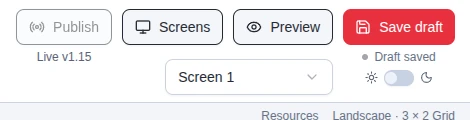
The editor's Publish, Screens, Preview, and Save draft controls.
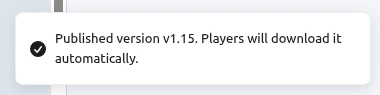
MenuStudio confirms when a version is published. Check the intended display as the final step.