
If a menu design should appear on more than one screen, copy a published screen instead of rebuilding its content. MenuStudio copies the published menu on the selected source screen into the screen you are editing. Copied prices are linked across screens automatically; other changes to each screen are independent.
Choose a published source screen
In the menu editor, first select the screen that will receive the copied menu. Choose Copy Menu From in the toolbar, then choose a location and one of its published screens. You can copy from another screen in the same location or from another location available to you. The current destination screen is unavailable as a source.

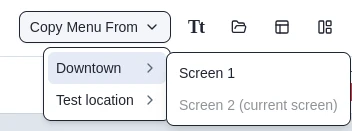
Only the source screen's published menu is copied. If that location has unsaved draft work or unpublished changes, those changes are not included. Review the source and destination shown in the confirmation before continuing.
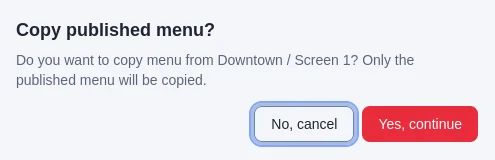
Confirm replacing the destination
The next confirmation explains that copying replaces the destination screen's current menu and all its contents. Cancel if you want to keep the existing destination. Choose Yes, replace menu only when you are ready to replace that screen's content.
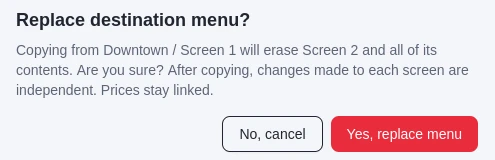
MenuStudio copies the source screen's menu design and content. The destination screen keeps its identity and name. Player assignments and player settings are not copied. After the copy, the two screens can have different artwork, text, layout, and other content; their copied prices remain linked.
Save and publish the copied menu
The copied menu becomes part of the current draft. The confirmation popup says Menu copied. Save draft and publish when ready. Choose Save draft to keep the copy, then Publish when it is ready to appear on the destination screen's player.

Understand linked prices
Copied price overlays are linked automatically to their source prices. Changing a linked price or its name keeps the linked occurrences consistent across the screens. Other screen edits remain independent. If you later want a copied price to change separately, unlink that occurrence in the Prices panel; see Prices, sections, and requests.
To use the same design on several screens, select each destination screen and repeat the copy steps. Review the destination confirmation each time because its current menu content will be replaced.