
Each artwork section has its own image frames, rotation interval, transition effect, and timing profiles. Open the section's Artwork section panel to arrange its artwork and edit these settings.
Add images as frames or together
When you add another image to a section that already contains artwork, MenuStudio asks how it should display:
- Transition · new frame adds the image as a new frame in the rotation.
- Coexist · current frame adds it to the selected frame so the images display together.
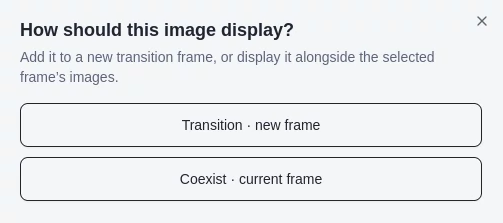
Choose a new frame to rotate between artwork, or coexist to show images together.
The artwork list labels frames, such as Frame 1 and Frame 2. Use the up and down controls on an image card to change its frame's position in the playlist. Images within the same frame stay together.
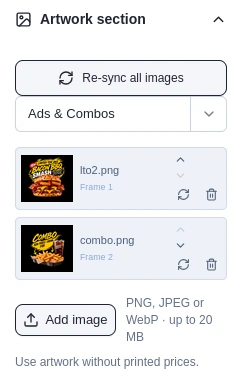
Set rotation and transitions
Open Transitions & timing in the artwork panel for the selected section.
- Set Playlist interval (seconds) to choose how long each frame displays before the next one begins.
- Choose an Image transition, such as Cut, Fade, Slide, Push, Wipe, a zoom effect, Center reveal, Blur fade, Cube turn, or Random mix.
- For directional effects, choose a direction. For animated effects, adjust the transition duration. If you choose Random mix, choose which effects are included.
- Choose Test to play the next frame in the editor. Use Preview to see the schedule-based playback.
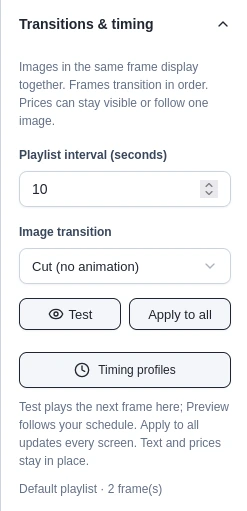
The controls set the section's playlist interval and transition effect. Text and prices stay in place as artwork changes.
Apply to all copies the transition effect settings to every section on every screen. It does not change each section's playlist interval or timing profiles.
Schedule frames with timing profiles
Use Timing profiles to play selected frames at particular times. Profiles apply to the artwork section whose panel you opened.
- Choose Add profile, then give it a recognizable name, such as “Lunch” or “Weekend.”
- Select the days and set the start and end times. MenuStudio uses the location's timezone.
- Optionally set a From date and Through date for a date-limited schedule.
- Set the profile's Rotation interval and choose which frames to play. Images in one frame remain together.
- Choose Keep profile, then save the menu draft to keep the schedule.
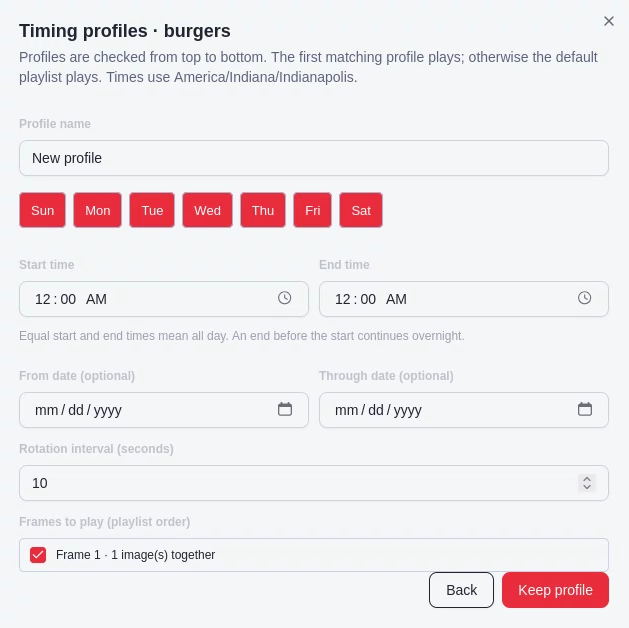
A profile specifies when it applies, its rotation interval, and the frames in its playlist.
Profiles are checked from top to bottom. The first enabled profile whose days, times, and optional date range match is used. If none match, the section uses its default playlist and interval. Reorder profiles when schedules overlap; equal start and end times mean all day, and an end time earlier than the start continues overnight.