Use Administration to manage your team and locations. An administrator can invite people, choose a starting role, adjust their permissions and location access, and manage the organization profile. Give each person the access they need for their work.
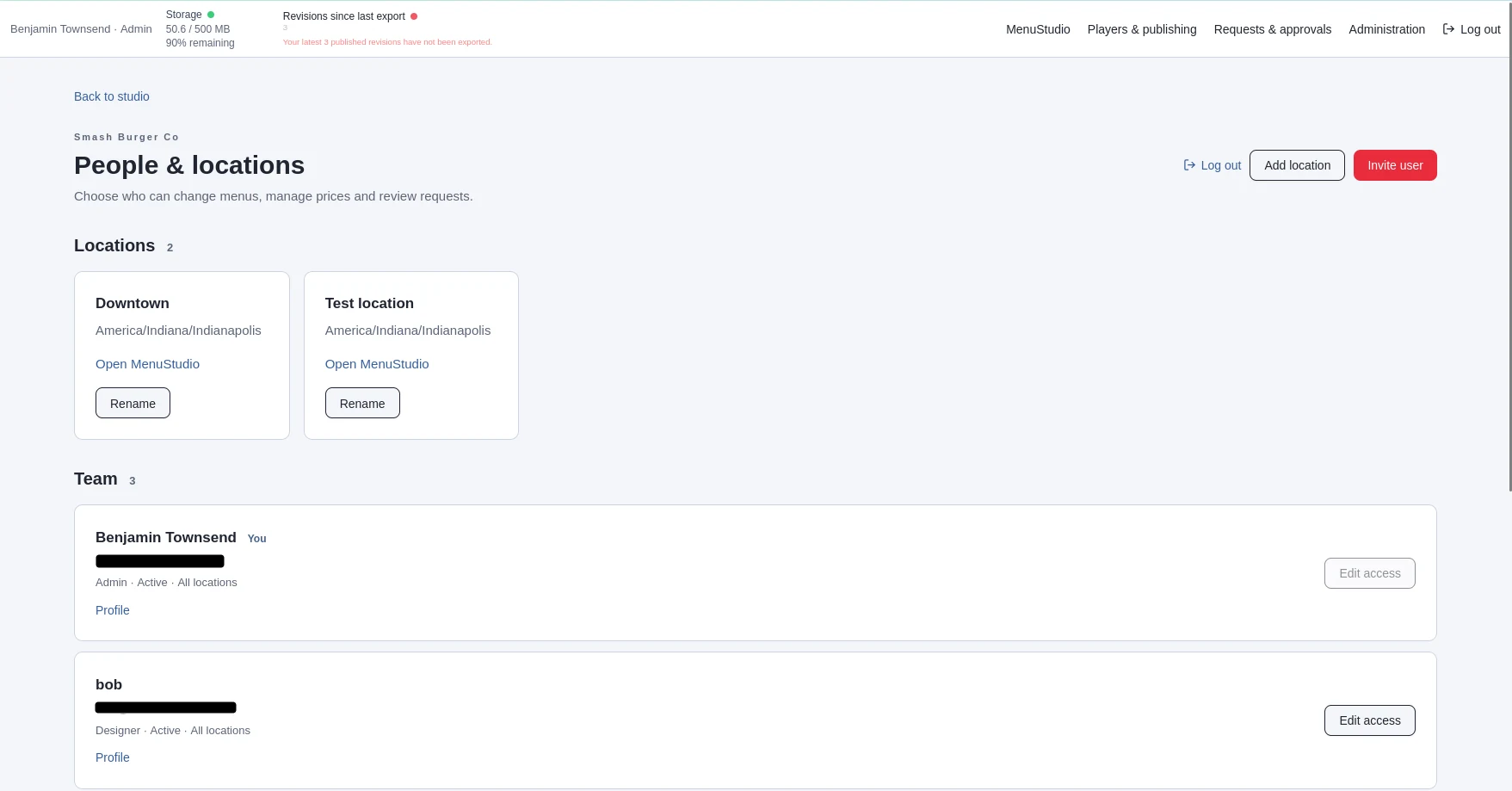
Invite a team member
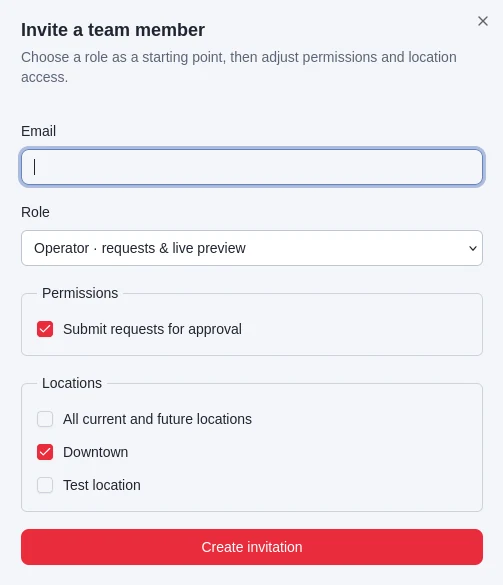
Choose Invite user, enter the person's account email, and select a role to start from. Adjust the permission checkboxes and choose the locations they should be able to access, then select Create invitation. MenuStudio creates a one-time invitation link that expires after seven days. Share the link with the intended person so they can accept the invitation.
You can review invitations on the Administration page. A pending invitation can be revoked. If someone already has an account, edit that team member's access instead of inviting them again.
Choose user access
Roles provide a starting set of permissions. You can then adjust permissions and location access for designers and operators:
- Administrator: all permissions for all current and future locations. Administrators can manage users, locations, menus, prices, requests, publishing, and players.
- Designer: a starting set for managing locations, editing menus and prices, submitting or reviewing requests, publishing, and managing players. Choose which locations they can access.
- Operator: starts with permission to submit requests. Add only the additional review or work permissions they need, and choose their locations.
The permission list covers managing users and invitations; creating and managing locations; editing artwork, text, layout, and schedules; changing prices; submitting requests; reviewing and approving requests; publishing menus; and pairing or managing players. Location access can be limited to selected locations or set to all current and future locations.
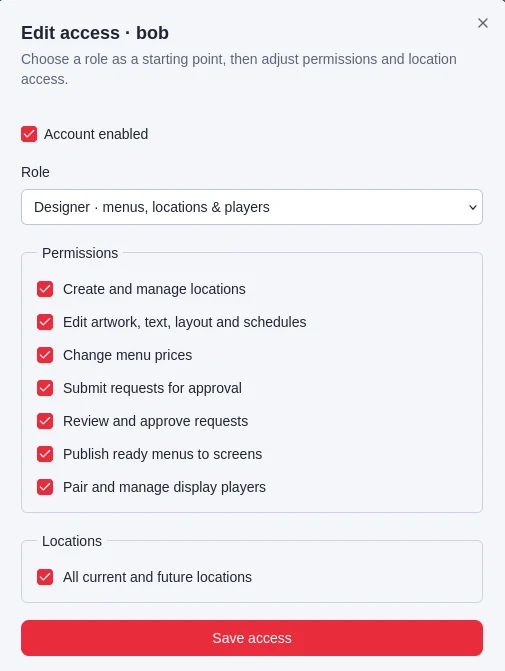
Review access when someone's responsibilities change. Disabling an account prevents access while preserving its team record. An administrator cannot change their own access; another administrator must do that. At least one active administrator must remain.
Set up your administrator profile
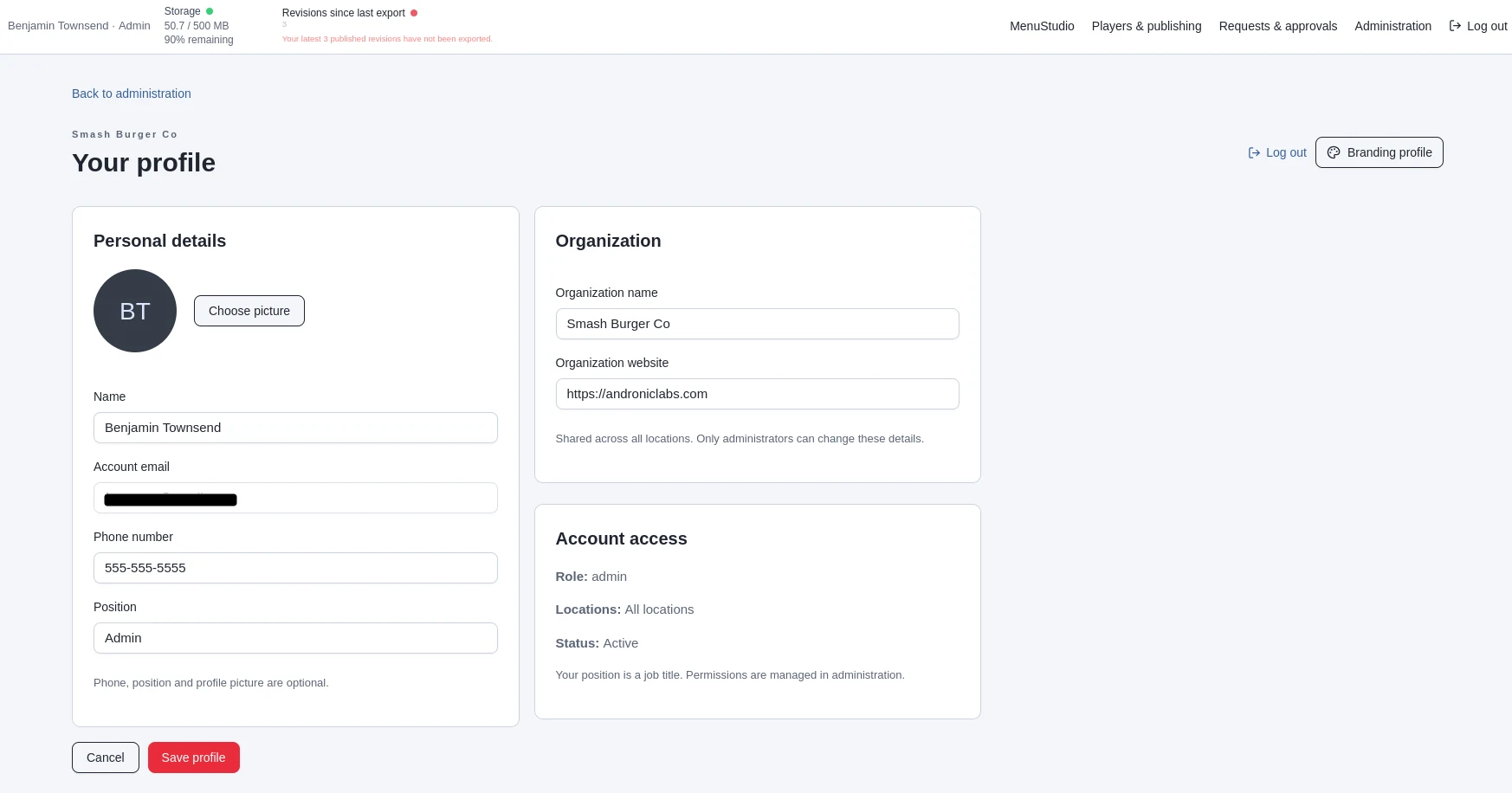
Open Profile from your team card. Add your name, optional phone number, job title, and profile picture. Administrators can also set the shared organization name and website. The account email is shown for reference and cannot be changed here. Choose Save profile when finished.
Your job title is profile information; it does not change permissions. Manage access from Administration. Use Branding profile to set the shared logo, colors, fonts, and request reviewers; see Branding profile for details.