
Prepare the hardware
Connect the player device to the display and to a reliable network. A Raspberry Pi setup kit requires its own one-time operating-system and network setup; cloud pairing does not configure the device or Wi-Fi. Keep the display on while pairing.
Pair the player in MenuStudio
- On the display device, open MenuStudio's player page. A new browser player shows a temporary pairing code and a QR link. The code is valid for ten minutes.
- On your signed-in computer, open Players & publishing and choose Add browser player.
- Select the location and one of its published screens. Enter the code shown on the display, give the player a recognizable name, and choose Pair TV.
- Return to the display. It should connect and begin showing the menu assigned to that screen.
You do not need to sign in on the TV. Pairing codes expire, so use the current code on the display if the first one has expired. Treat pairing codes like temporary access codes: do not include them in screenshots you share.
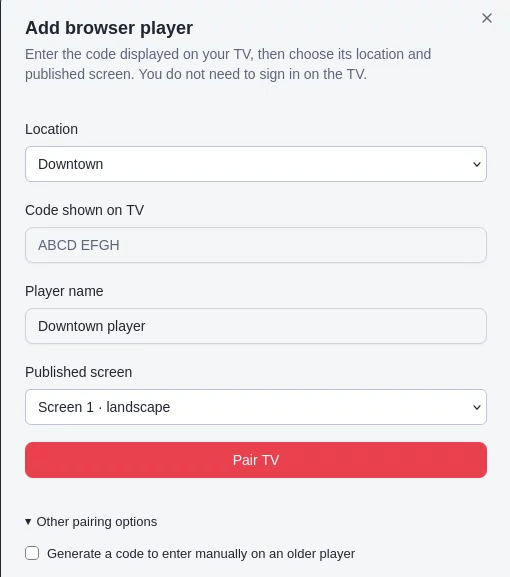
The Add browser player dialog. The location, pairing code, player name, and screen values are concealed in this copy of the screenshot.
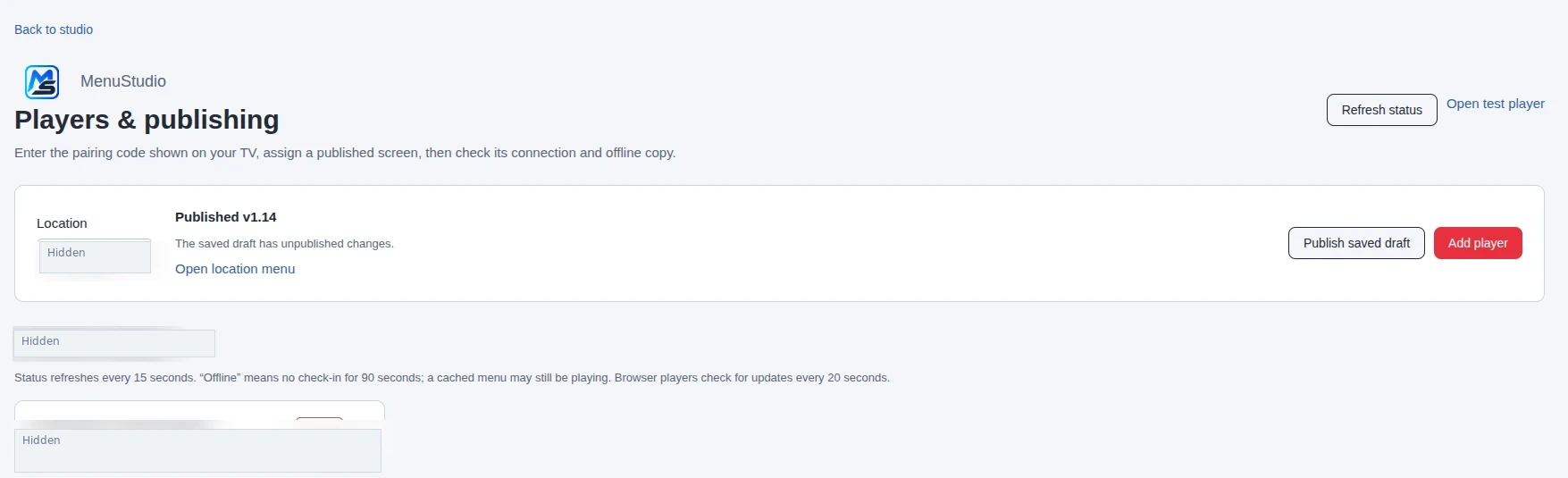
Players & publishing shows the selected location's published version and connected players. Location and player labels are concealed in this copy.