
Saving a draft and publishing it are separate steps. Saving keeps your edits in the location's draft. Publishing sends the saved draft live to that location's players. Review the draft and its prices before publishing.
Save the draft first
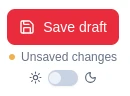
The editor shows Unsaved changes while your latest edits are only in the current editing session. Choose Save draft to keep them in the location's saved draft. When the status changes to Draft saved, the saved draft is ready to publish. The Publish button is unavailable while there are unsaved changes; save first.

Publish the saved draft
Choose Publish in the editor to send the saved draft to the location's players. The editor shows the live version and indicates when the draft has changes waiting. You can also open Players & publishing, select a location, review its published version, and choose Publish saved draft when changes are waiting.
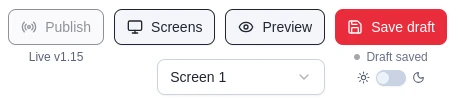

Publishing creates a new live version. Players download it automatically when they reconnect and check for updates. The player may briefly show Updating with its current version behind the target version.
Resolve approved price changes
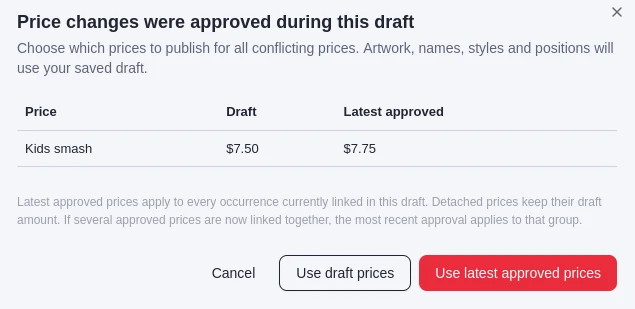
If a price change is approved while you are working in a draft, MenuStudio asks which price to include when you publish. The comparison shows the draft amount and the latest approved amount. Choose Use draft prices to keep the amounts in your saved draft, or Use latest approved prices to include the approved amounts. Artwork, names, styles, and positions still come from the saved draft. Linked price occurrences follow the latest approved price as described in Prices, sections, and requests.
Confirm the player received the update
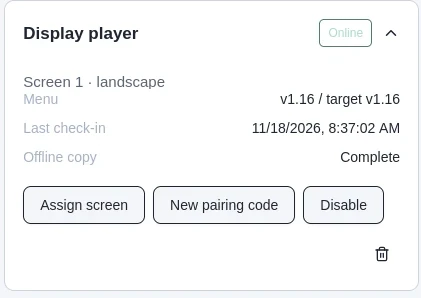
Open Players & publishing and expand the player's status card. While the new version is downloading, the player can show Updating and a current version that is lower than its target version. Wait until the current and target versions match and the player is Online. Offline copy · Complete confirms the menu is cached on the player for offline playback.
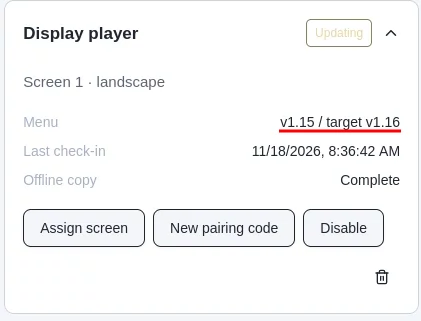
If the player stays on an older version, check that it is online, that the correct location and screen are assigned, and that the saved draft was published. Use Refresh status on the Players & publishing page to reload the reported status. Offline players may keep showing their cached menu until they reconnect.