Clear section and price names make menus easier to maintain. They also help your team identify the right item when someone requests a price change.
Name sections and prices clearly
An artwork section is an area of a screen, such as Burgers or Sides. In the Artwork section panel, use the section selector to switch sections. Click the section name to rename it. Use names your team will recognize; those names also help group prices in the request form.
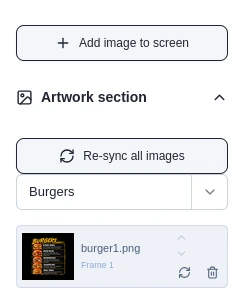
The section name appears above its artwork list. The arrow opens the section selector.
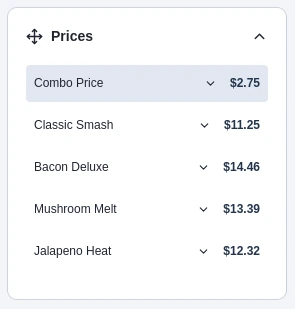
Each price overlay has a name and an amount. Use a specific item name such as Classic Smash or Combo Price, rather than a generic label such as “Price 1.” The Prices panel lists these names and amounts so you can find the right overlay later.
Link the same item across screens
If the same menu item appears on more than one screen and should always have the same name and price, link its price overlays. Linking makes the occurrences share their name and amount: changing either one updates the linked occurrences on the other screens too.
- Select the price overlay, then find its row in the Prices panel.
- Open the small menu beside the price name and choose Link to an existing price.
- Choose the matching price on the other screen. Check the screen name and amount in the list before selecting it.
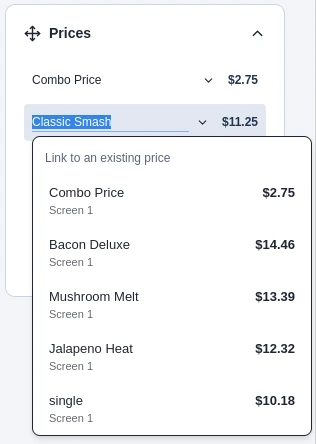
The link menu shows the existing price name, screen, and amount.
Keep different sizes or offers unlinked when their prices may change independently. To separate a linked occurrence later, use its unlink control and confirm. It becomes an independent price named New price; its amount and appearance stay the same, so rename it afterward.
Submit a price change request
If you do not have permission to edit prices directly, use Requests & approvals to ask your team to change them.
- Choose the location and select Price changes as the request type.
- Select the individual price or the whole section. The picker groups prices by screen and section. Selecting a linked price includes its linked occurrences.
- Choose a new amount for each selected item or enter a percentage increase or decrease.
- Give a clear reason for the change, then choose Submit for approval.
Use the names in the section and price lists to make sure you are requesting the intended change. The request shows the current and proposed amounts, section, screen, and the number of linked occurrences.
Review a request
Team members with review permission can open Requests & approvals and choose Approvals. Check the location, reason, current and proposed amounts, and any linked occurrences. Reviewers can approve or deny each price separately, or decide all remaining prices in the request.
An approved price request updates the live prices immediately. It changes only those prices; other unsaved or unpublished draft work stays separate. If a draft has different prices, MenuStudio asks which prices to keep when that draft is published.
Submitters can follow the status and reviewer response in My requests. Available actions depend on the permissions assigned to each account.
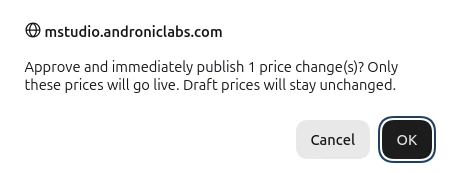
Approving a price request is separate from publishing a saved menu draft. If you choose to approve and immediately publish a price change, only those approved prices go live; draft prices stay unchanged. MenuStudio asks you to confirm before publishing the price change.