
MenuStudio keeps a menu with its location. If your location already exists, open it from the location selector. To create a location, use Administration → People & locations → Add location. You need permission to manage locations.
- Enter a location name.
- Under Starting menu, choose Blank menu to start fresh, or copy an existing location as a starting point.
- Set the location's timezone and choose Create location.
- Open the location in the studio. In the editor, choose Screens to set the number of screens and each screen's orientation. Use the screen workspace controls if you want to arrange multiple screens together.
- Choose the screen you want to edit and begin adding content.
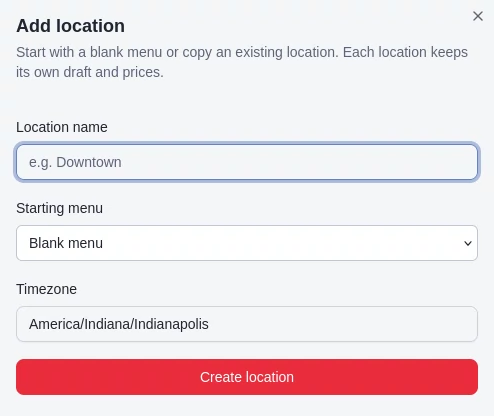
The Add location dialog lets you start with a blank menu or copy another location's menu. The typed location name is concealed in this copy.
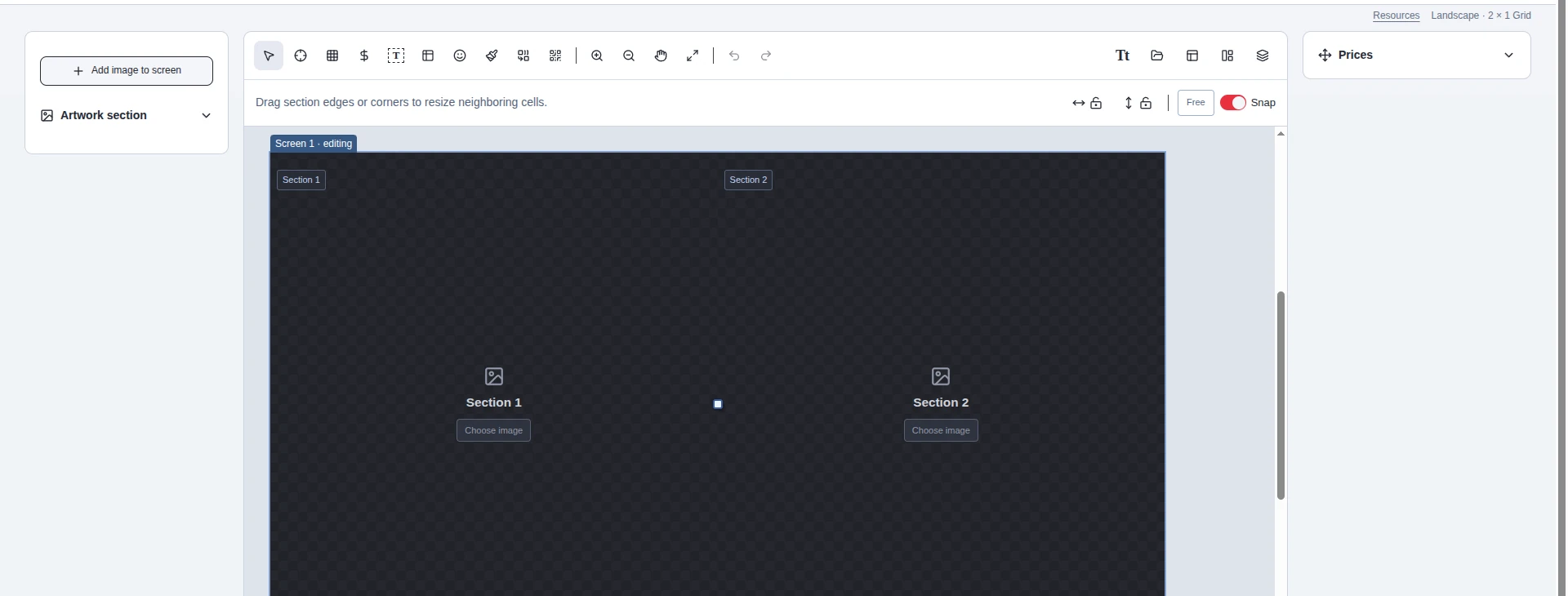
The editor's screen workspace. Use Screens to configure the displays in a menu.