
Backups help you recover a MenuStudio setup if you need to restore it later. Use automatic backups for recent publication points, and regularly export a local copy you can keep outside MenuStudio.
Automatic backups
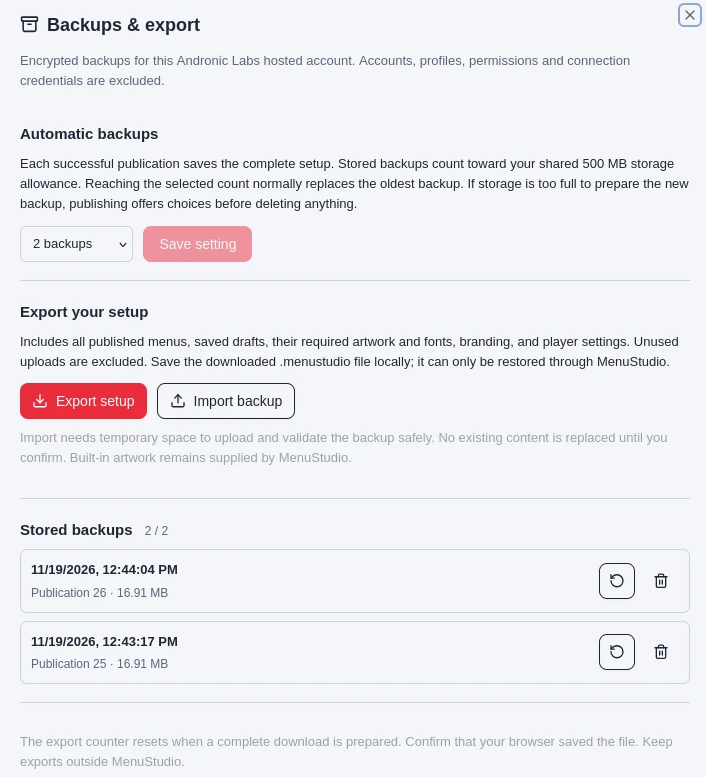
An administrator can open Backups & export from the workspace and choose how many automatic backups to keep: one, two, or three. Choose 0 · Disabled to turn them off. With automatic backups enabled, MenuStudio normally saves a complete setup backup with each successful publication. The backup covers locations, published menus, saved drafts, player assignments, and files needed by those menus, along with branding and player settings. Accounts, profiles, permissions, and connection credentials are excluded.
Automatic backups use the shared storage allowance. When the selected backup count is reached, MenuStudio normally replaces the oldest backup. If storage is too full to prepare a new backup, publishing a saved draft will offer choices before deleting anything, including managing files, deleting the oldest backup, or publishing without a new backup.
Preparing the backup adds work to publication. Large setups with multiple locations, menus, screens, and media files may take a little longer to publish while MenuStudio prepares the complete backup.
Export a local copy
Choose Export setup to download an encrypted .menustudio file. The export includes published menus, saved drafts, their required artwork and fonts, branding, and player settings. Unused uploads are not included. Unsaved editor changes are also left out, so save any drafts you want in the backup before exporting.
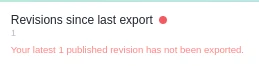
Save the downloaded file on your computer, then keep a second copy in an off-site location such as Google Drive or a similar storage service. Make a fresh export after important publications and confirm that your browser saved the file. The Revisions since last export indicator helps you notice when newer publications have not yet been included in an export.
MenuStudio provides the .menustudio file for restoration through Backups & export. It is encrypted for this hosted MenuStudio account and is not a general-purpose menu file.
Restore a backup
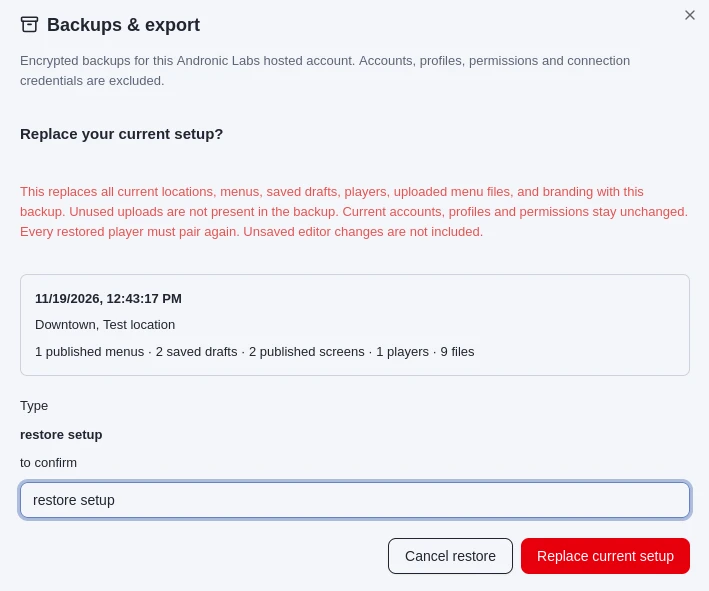
You can restore a stored automatic backup or import a .menustudio export. MenuStudio uploads and checks an imported backup before showing the restore summary. Review its date and contents before continuing.
Restoring replaces the current setup's locations, menus, saved drafts, players, uploaded menu files, and branding with the backup. Unused uploads are not part of the backup; current accounts, profiles, and permissions stay unchanged. Unsaved editor changes are not included, and every restored player must be paired again. Type restore setup and choose Replace current setup only after reviewing the backup summary.
Keep both a current local export and a separate off-site copy. Automatic backups are useful recovery points, while a downloaded export gives you a copy outside MenuStudio.