Screens define the displays in a location's menu. Players are the TVs, computers, or dedicated devices that show a published screen. Set up the screens in the menu editor, publish the menu, then pair each player and assign its screen.
Set up menu screens
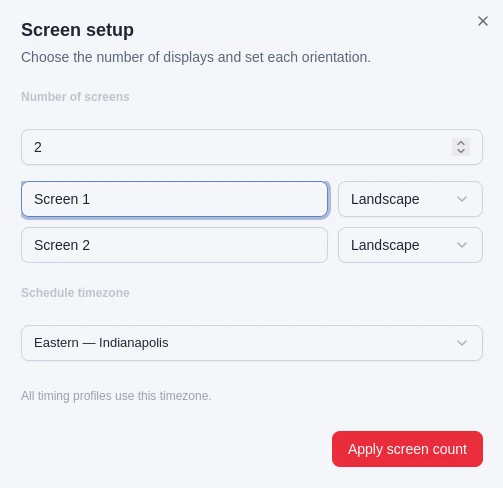
In the menu editor, choose Screens to open Screen setup. Set the number of screens, give each one a recognizable name, and choose Landscape or Portrait to match the display. If you reduce the screen count, the last screens are removed from the draft; undo is available until you leave the editor. Choose the schedule timezone for the location. Timing profiles use this timezone.
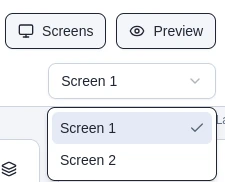
Choose Apply screen count to apply the screen setup. Use the screen selector in the editor to switch between screens while working. Each screen has its own layout, artwork, and menu content.
Publish before pairing
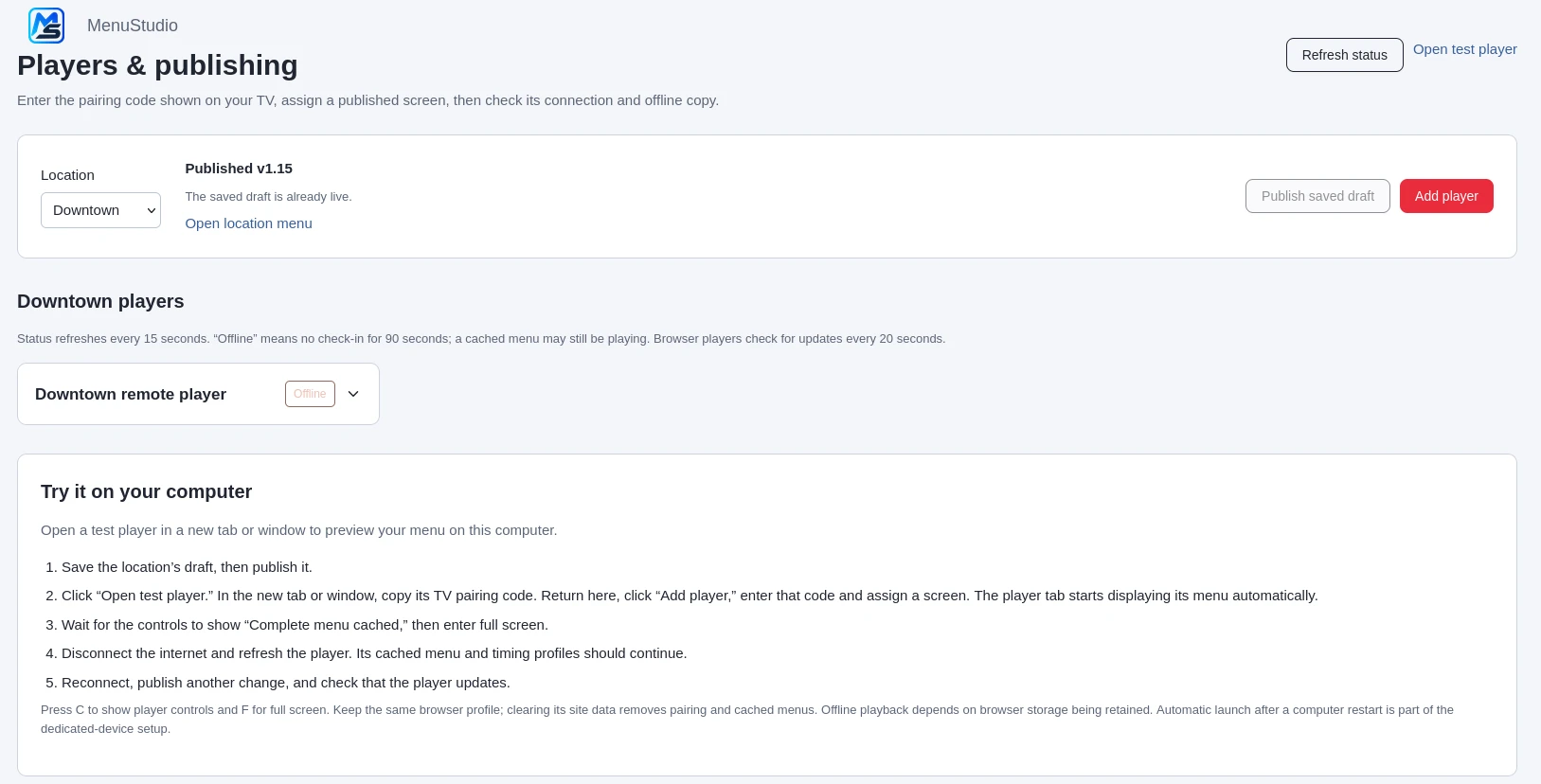
Players show published screens. Save the location's draft, then open Players & publishing. Choose the location and select Publish saved draft if the latest draft is not live yet. A player can only be assigned a screen from that location's published menu.
Pair a display player
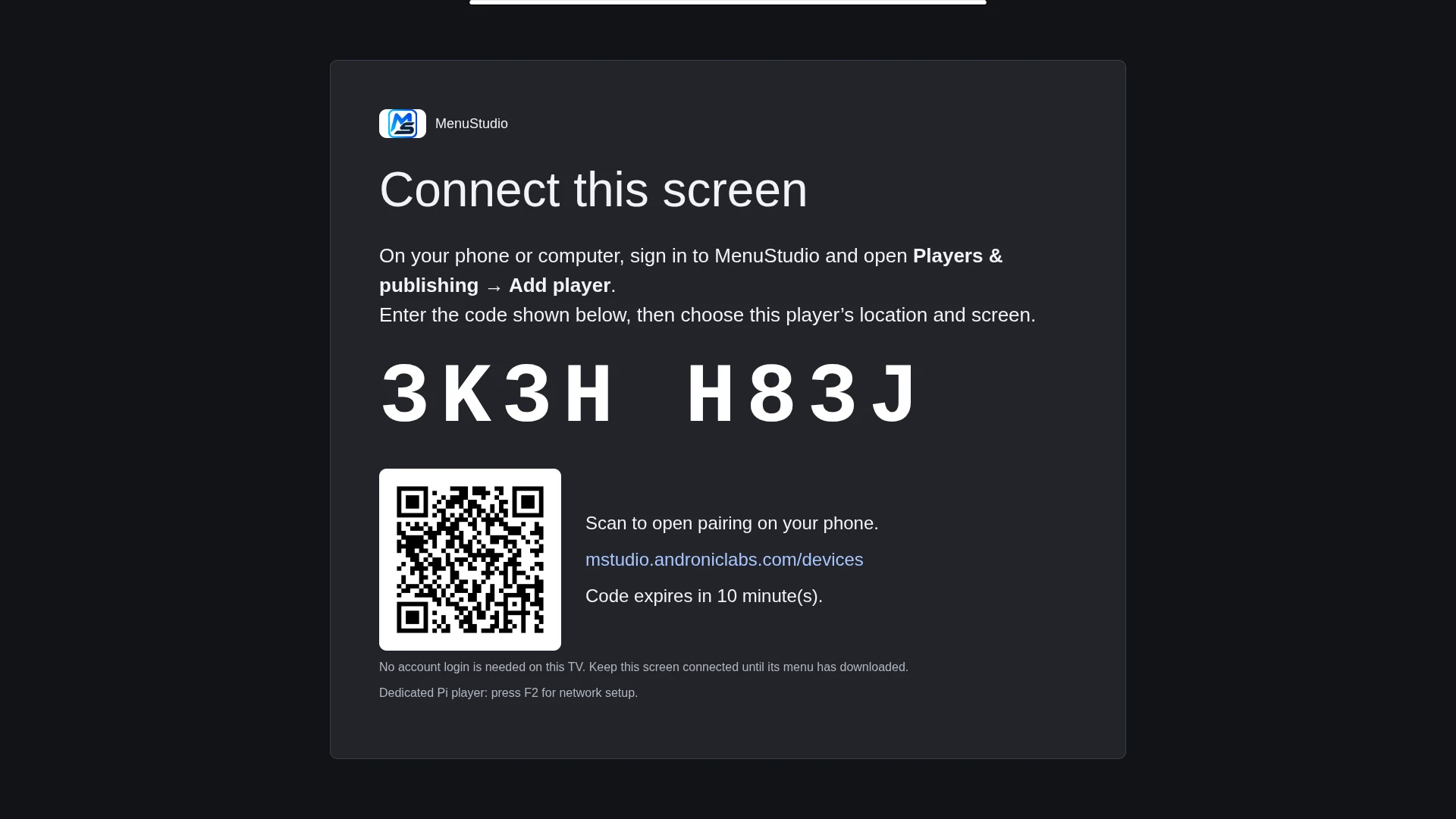
On the display device, open the MenuStudio player page. It shows a one-time pairing code and a QR code you can scan with a phone. The pairing code expires after 10 minutes and can only be used once. On a computer or phone where you are signed in, open Players & publishing and choose Add player. Enter the code shown on the display, give the player a name, and choose its location and published screen. The TV does not need an account sign-in. Keep it connected until the menu finishes downloading.
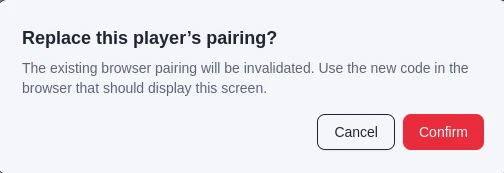
If pairing needs to be replaced later, expand the player card and choose New pairing code. The existing browser pairing will stop working; use the new code in the browser that should display the screen.
Assign or change a player's screen
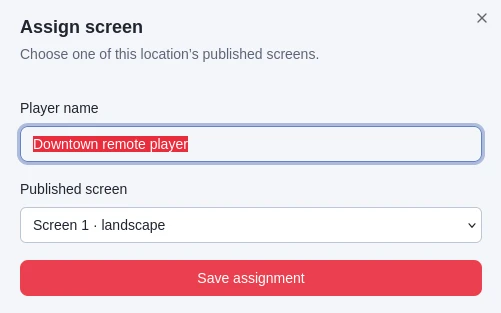
In Players & publishing, expand the player card and choose Assign screen. Confirm the player name and select one of the location's published screens. Choose Save assignment. The player will display the selected screen after it receives the updated assignment.
Check player status
Expand a player card to see its assigned screen and orientation, current menu version compared with the target version, last check-in, and whether its offline copy is complete. Use Refresh status to request an update. The list refreshes automatically every 15 seconds. Offline means the player has not checked in for 90 seconds; its cached menu may still be playing. Browser players check for updates every 20 seconds.
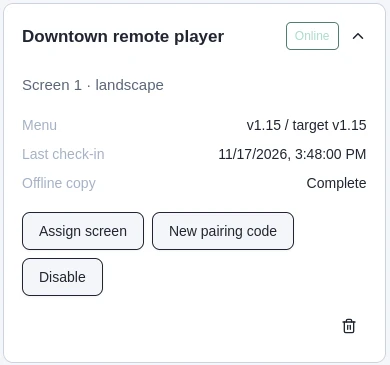
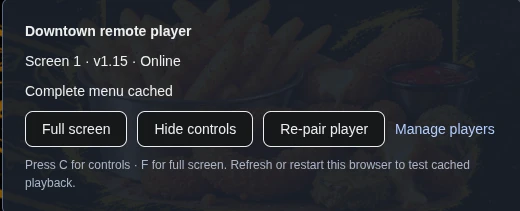
Wait for Offline copy · Complete before relying on playback without an internet connection. The player's on-screen controls show its name, assigned screen, menu version, connection status, and whether the menu is cached. Press C to show or hide the controls and F for full screen. Refresh or restart the browser to check that cached playback works. Keep the same browser profile: clearing browser site data removes the pairing and cached menu. Automatic launch after a computer restart is part of dedicated-device setup.