MenuStudio keeps uploaded artwork, backgrounds, and imported fonts in a shared file library. The Files browser helps you organize those originals and select existing files for menus. The Fonts panel manages imported font files and device font families.
Browse folders and find files
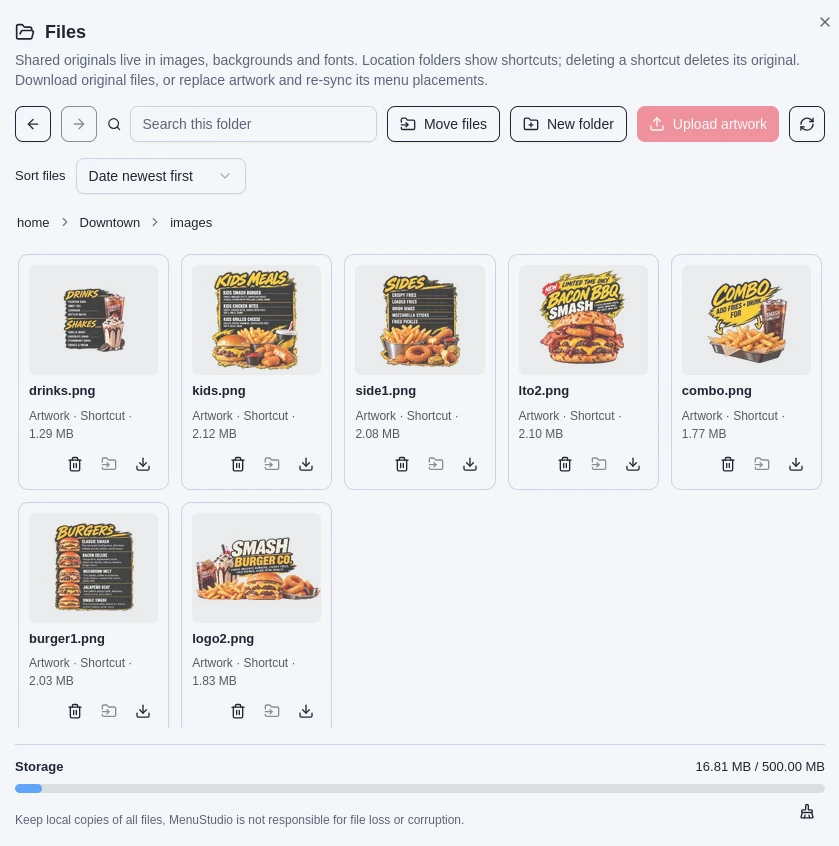
Open Files from the workspace to browse the library. Use the folder path and back/forward arrows to move between folders; home returns to the library root. The search field searches the current folder and its subfolders. Use Sort files to order results by date. Create folders for your team's organization, move artwork between folders, and download an original when you need a local copy.
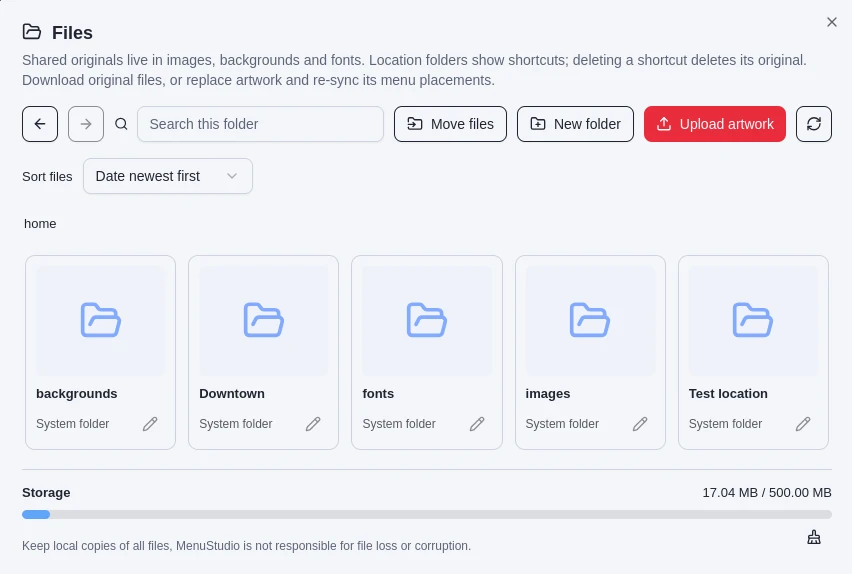
At the root, the system folders images, backgrounds, and fonts organize shared originals. Location folders show shortcuts to those originals. A shortcut is not a second copy: deleting it deletes the original file, so that file is removed wherever it was linked. Check the folder path and the Shortcut label before deleting. Keep local copies of files you may need again.
Upload and reuse artwork
Artwork files can be PNG, JPEG, or WebP, up to 20 MB each. Upload one or more files from Files with Upload artwork, or add artwork from the menu editor: choose Add image in an artwork section or Add image to screen, then select an existing file or upload a new one. The editor also lets you pick an existing image for a screen background. Choosing a library file reuses the stored original; it does not require another upload.
If a file with the same name already exists, MenuStudio offers replacement choices. You can replace it now, which updates its uses, or stage the replacement for the next publication. See Replace or refresh an asset before choosing.
Add and manage fonts
Open Fonts in the menu editor to import a font file or add a system font family. Imported fonts support WOFF, WOFF2, TTF, and OTF files up to 10 MB. Imported fonts appear in the font picker for menu text and travel with the menu. To remove an imported font, use its control in the Imported fonts list.
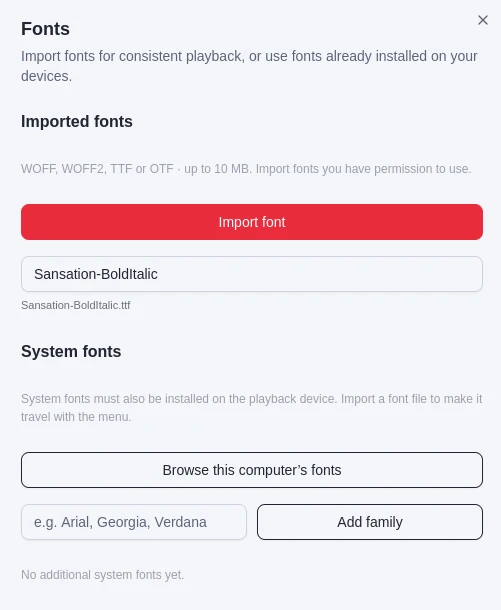
System fonts are available by family name, but they must also be installed on the playback device. Use Browse this computer’s fonts to find installed families, or enter a family name and choose Add family. Import the font file if it needs to travel with the menu and be consistent across playback devices.
Replace or refresh an asset
When you upload artwork with the same filename as an existing library file, choose whether to replace now or stage the replacement for the next publication. Replacing now updates the open menu and the file's saved and published uses. Staging keeps the current artwork on displays until you save and publish; the open menu uses the replacement so you can review it first.
After a replacement is available, use Re-sync artwork beside an image in the menu editor to refresh that placement, or Re-sync all images to refresh every image in the artwork section. Re-sync pulls in the current library file and retains the placement settings. Save the draft and publish when the updated art is ready for displays. If MenuStudio reports that images are already up to date, upload a replacement in Files first.
Check storage and clean up
The bottom of Files shows storage used and the account's capacity. Review this meter when uploading large files or organizing a busy library. Download originals you want to keep outside MenuStudio; the Files panel recommends keeping local copies.
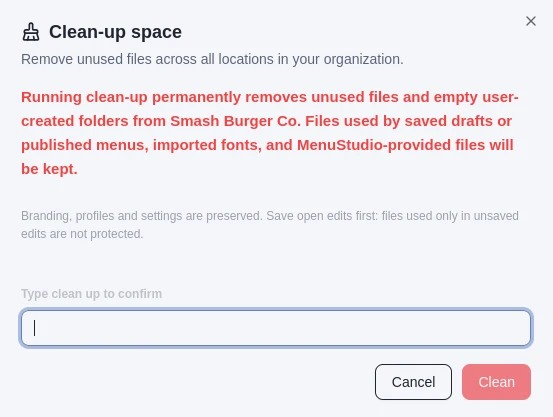
An administrator can open Clean-up space from the Files storage area. Clean-up permanently removes unused files and empty user-created folders across all locations. Files used by saved drafts or published menus, imported fonts, and MenuStudio-provided files are kept. Branding, profiles, and settings are preserved. Save open edits before running clean-up: files used only by unsaved edits are not protected. Type clean up to confirm the action.